Access the 6-8 Game Desk
Option 1: Download the App
Download the FREE '6-8 Game Desk' app from the App Store or Google Play Store to your iPad/Android tablet.
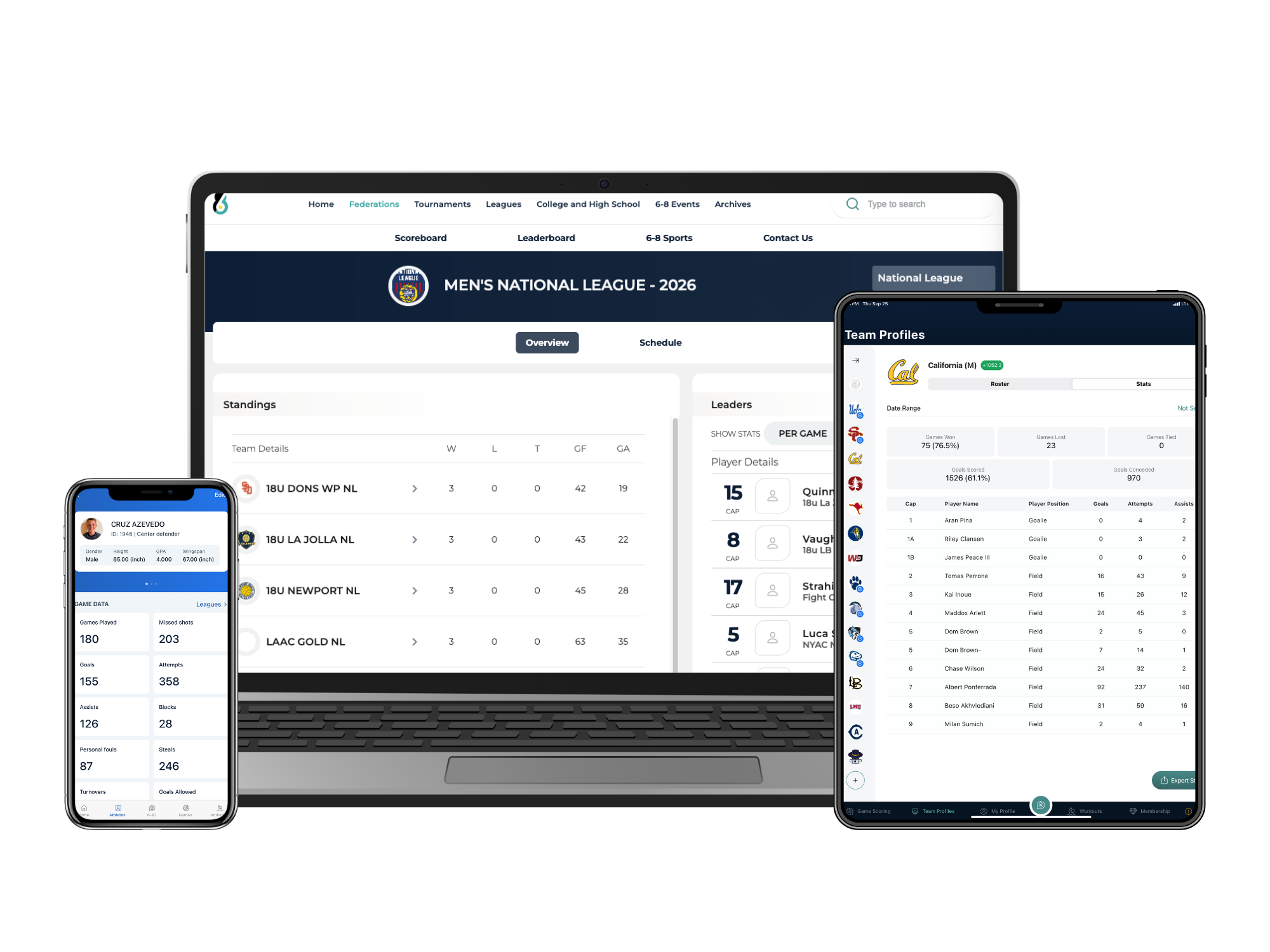
6-8 Game Desk - Training Resources
Stat Definitions
The 6-8 Game Desk tracks the following statistics:
- Goal
- When the entire ball enters the goal and a point is given to the scoring team.
- Assist
- When an athlete passes the ball to another athlete who scores a goal.
- Steal
- When an athlete legally takes the ball away from another athlete or intercepts the pass.
- Turnover
- When an athlete loses possession of the ball to the opposing team before a shot is attempted.
- Offensive
- When an offensive player commits a foul on offense that results in a turnover.
- Exclusion
- When a defensive player commits an over-aggressive foul on the offensive player and the referee gives that player an exclusion/ejection.
- Earned Exclusion
- When an athlete's defensive player is over aggressive and given an exclusion, the offensive athlete is also awarded an earned exclusion.
- Penalty
- Single whistle that leads to a direct penalty shot. This counts as an exclusion, but the player will stay in the field of play.
- Earned Penalty
- When an athlete, while trying to score a goal, earns a penalty foul.
- Block
- When a defensive player stops or redirects the ball, which prevents a goal from being scored.
- Missed Shot
- When an athlete attempts a shot on goal that does not result in a goal or a block.
- Timeout
- When a team calls a stoppage in play for strategic purposes.
1. Before the Game
Roster Checking and Editing
Prior to each game, make sure to check each roster in 'Team Profiles' prior to each game to ensure that cap numbers and names are accounted for and line up correctly.
Editing Rosters Before Game in 'Team Profiles'
- Tap roster you wish to edit & find player you wish to edit
- Tap the pen and paper icon to the right of the player, tap screen to make edits for name, cap number, position, adding an athlete's ID number (tap 'Choose Existing'), and to activate/deactivate
- Make the changes needed and tap 'Done'
A Crossed Out Athlete: Activating and Deactivating a Player(s) in 'Team Profiles'
- If an athlete is crossed out or not appearing on the paper roster
- Tap roster you wish to edit & find player you need to edit
- Tap the pen and paper icon to the right of the player, tap the toggle button under 'Activate Player' to TEAL to activate and GRAY to deactivate (not have this player on the roster for this game)
- Hit 'Done' when completed
Changing Athletes from Field Players to Goalies
- For position changes, go to 'Team Profiles'
- Tap the pen and paper icon to the right of the player
- 'Position' and change a 'Field Player' to 'Goalie'. Select 'Done'
Changing Athletes from Goalies to Field Players
- For position changes, go to 'Position' and change a 'Field Player' to 'Goalie'. Select 'Done'
- Tap the pen and paper icon to the right of the player
- 'Position' and change a 'Goalie' to 'Field Player'
- Select 'Done'
2. How to Create a New Game
- Go to the 'Game Scoring' tab. Press '+New Game' in the bottom right corner.
- Fill in game information in — make sure to tap 'Public Sharing' to share to the 6-8 Scoreboard (requires internet connectivity)
- To create the game immediately — under 'Scheduling Preferences' select 'Create game now'.
- To create a later game, select 'Schedule game' to select the date & time (PST).
- To start the later game — tap on the game and select 'Start Game' on the pop up.
3. How to Schedule an 'Upcoming Game'
- Go to the 'Upcoming' tab on the top right under the 'Game Scoring' section. Press '+New Game' in the bottom right corner.
- Fill in game information in — make sure to tap 'Public Sharing' to share to the 6-8 Scoreboard (requires internet connectivity)
- To create the game immediately — under 'Scheduling Preferences' select 'Create game now'.
- To create a later game, select 'Schedule game' to select the date & time (PST).
- To start the later game — tap on the game and select 'Start Game' on the pop up.
4. Scoring the Game
- Select 'Sprint Winner' & 'Sprint Loser' to begin taking stats.
- Select the player first and then choose the statistic (example: 'goal'). All stat buttons are in the right column.
- Marking a goal
- Tap the player of the team that scored and tap 'Goal.'
- Input time and select if it was a 6 on 5, penalty or other in the 'Specifications' area.
- Hit 'Done'
- Marking an exclusion, penalty, brutality, game exclusion, misconduct
- Tap the player of the team that committed the foul and tap 'Exclusion' or 'Penalty' for a 5 meter.
- Input time, tap 'Earned Exclusion' to scroll and select who DREW the foul.
- To add any misconduct or other information — you can tap 'Notes' and write in the detail.
- Hit 'Done'
- Marking a time out
- Select the three dots icon next to 'Add Player.'
- Input time, tap if it was a full (WHITE icon) or 30 second TO (YELLOW icon), select 'Done.'
- You will see a stopwatch icon appear with a number to mark how many fully or 30s have been used.
- Marking a yellow, yellow red, red card
- Select the three dots icon next to 'Add Player' and tap which card color you need.
- Tap the player/staff who earned the card, tap 'Game Time' to input time of the card, hit 'Done.'
5. How to Switch Quarters
- Select 'Q1' area at the top right to change quarters.
- To add a shootout or overtime: select the '+' button.
- You can change between each quarter at any time.
- Note: always double check that you are in the correct quarter.
6. In-Game Editing
In-Game Player Editing: Cap Number Changes & Position Changes
- Swipe LEFT to edit the player
- Tap EDIT
- For cap number editing, go to 'Player Number' and type in the new number
- For position changes, go to 'Position' and change a 'Field Player' to 'Goalie' or 'Goalie to Field Player'
- Select 'Done'
In-Game: Editing Stats
- To edit stats, tap 'Statistics.'
- To DELETE a stat — swipe LEFT and select 'Delete.'
- To EDIT a stat — tap the edit icon that looks like a pen & paper.
- Select the field (ex. Player, Earned Exclusion, Specification) to change:
- To change a player: scroll and tap the NEW player.
- To change a time or label: tap 'Specifications.'
- When changes are complete — tap 'Done.'
In-Game Goalie Substitution
- Swipe the goalie you wish to remove to the RIGHT until you see the 'Deactivate' signal.
- In the pop up, enter the time of the substitution and tap the goalie you wish to substitute into the game.
- Tap 'Done.'
7. Finishing a Game
For games that need referee signatures:
- Tap the bottom right 'FINISH SCORING' button to begin the process
- A 'Finish Scoring' pop up will appear — tap 'Finish with quarter review' to continue
- You will be brought to a 'Quarter Review' page — you can edit, delete, and confirm stats for each quarter
- Use the 'quarter row' (top right) to select which quarter you want to review
- Tap 'View Summary'
- You will be brought to a 'Summary' page — here you can view goals, personal fouls, & cards for both teams
- Tap 'Finish Review' when done
- Collect the referee's full name (type on line) and signatures (use a finger to draw)
- Hit 'Done' and you will be redirected to the 'Finished' area and a pop up with the game score
For games that DON'T need referee signatures:
- Tap the bottom right 'FINISH SCORING' button to begin the process
- A 'Finish Scoring' pop up will appear — tap 'Finish without quarter review' to continue
- Hit 'Done' and you will be redirected to the 'Finished' area and a pop up with the game score
Become an Official 6-8 Game Desk Scorer
Get paid to score water polo games using the 6-8 Game Desk at events around the US! 6-8 Sports is always looking for reliable, detail-oriented scorers to join our team.
What You'll Do
- Score live water polo games using the 6-8 Game Desk app on an iPad/tablet
- Track all game statistics in real-time including goals, assists, steals, exclusions, and more
- Manage rosters and ensure accurate player data before each game
- Work at tournaments and events across the country
Requirements
- Familiarity with water polo rules and gameplay
- Completion of the training resources and tutorials on this page
- Reliable and able to commit to full event schedules
How to Become 'Game Desk Certified'
6-8 Sports is looking for people to score on the 6-8 Game Desk for several events across the nation! If you are interested in the opportunity to get trained and score on the 6-8 Game Desk, see below for the process!
Step 1: Read Through & Watch Our Full 6-8 Game Desk Tutorial
New video coming soon.
Step 2: Contact Our 6-8 Game Desk Team
Schedule a training session with our team.
Email: cam@6-8sports.com
Step 3: Receive & Complete the Online Quiz
To be added to the official game scorer base, you must pass the online quiz with a score of 85% or higher.